How to Explore the Content of Codes?#
This section's title is almost misleading. It cannot explain how to explore your codes, since that depends on your research methodology.
It can only explain how LibreQDA lets you "open," in a sense, the content of the boxes of extracts that codes are.
Free exploration#
To quickly view the content associated with a code, click on it in the tree. This will display the list of extracts linked to that code.
Cross exploration#
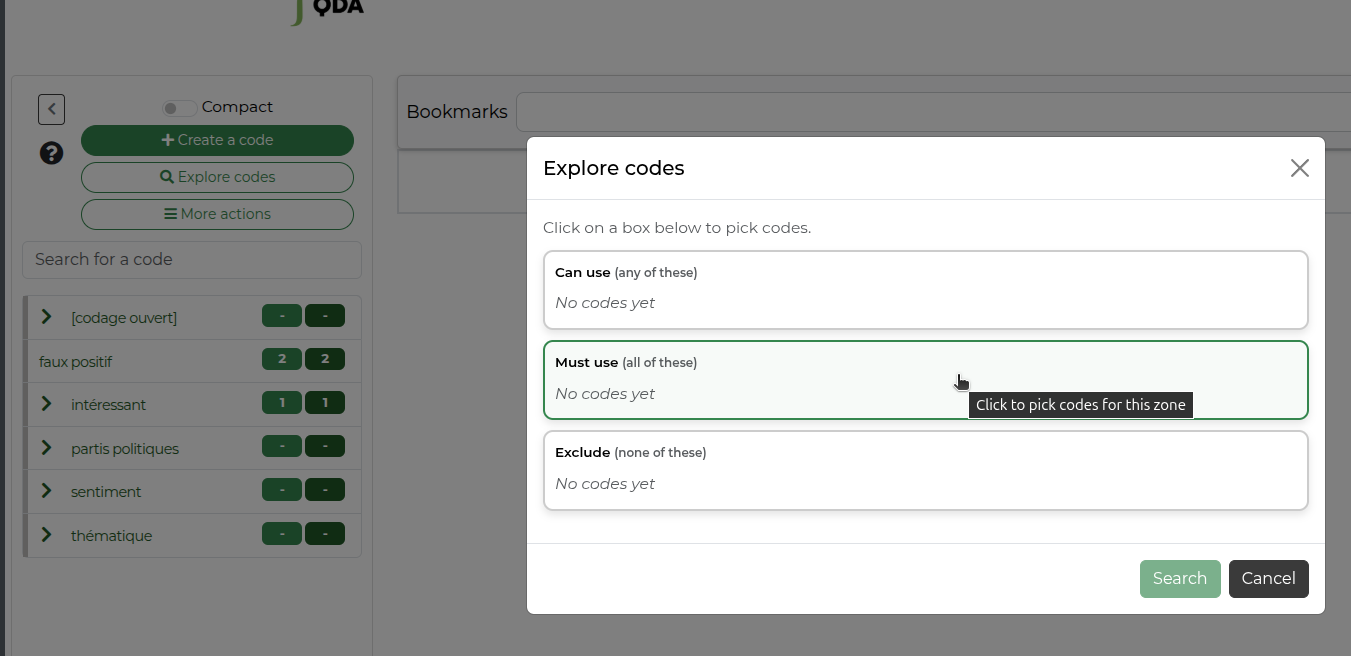
You can use a more advanced module to explore extracts. You can explore the extracts associated with more than one code, restrict them to a specific combination, exclude some, etc. Use the Explore codes button.
The Must use operator is strict. The codes it contains must have been used together, that is, added to the same extract.
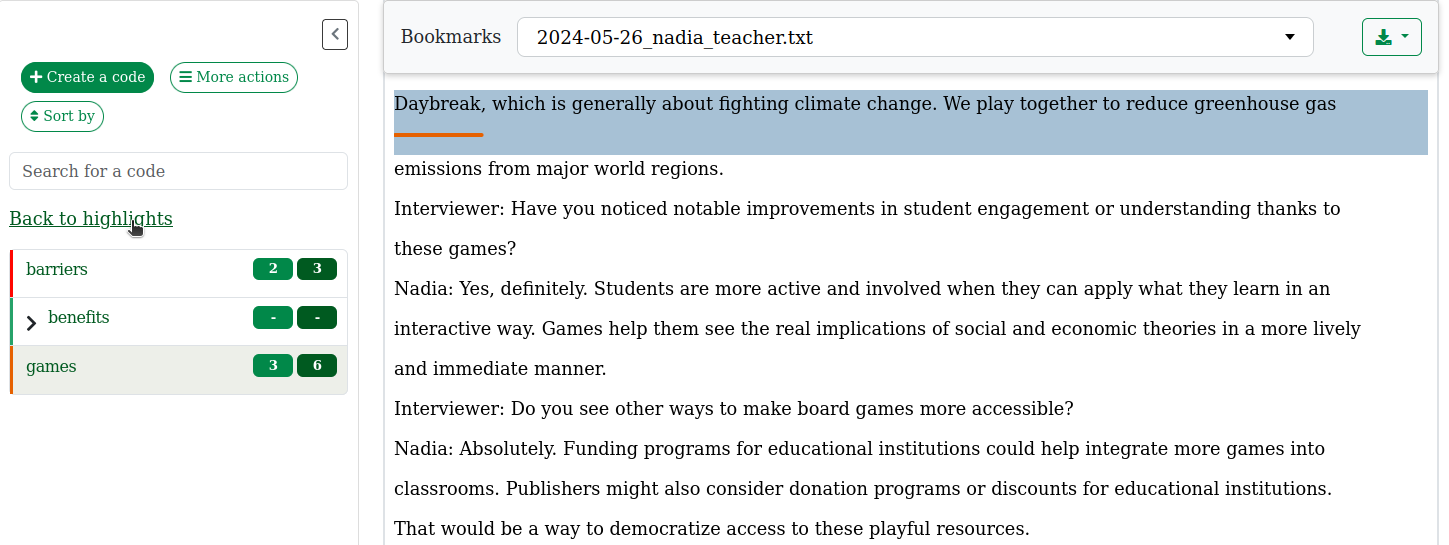
Tip: When you’re exploring the documents, use the Return to selections button to return to the initial list of selections.
Overlaps#
Since version 1.1.1, code exploration detects coded selections that overlap. A dotted line makes it possible to identify these selections, which were previously invisible.

Overlaps are created by applying more than one code to the same text extract. In the source document, they are visually identifiable as two or more stripes overlapping each other.
If you prefer fewer lines, you can apply several codes in a single step in the coding box. A single stripe with a colour gradient will appear.
